Quick Overview
To access real-time CME futures data in Sierra Chart at non-professional rates and trade with prop firms like The Futures Desk or Lucid Trading, you need a funded futures account. This guide shows you the easiest way to fulfill this requirement with minimal capital.
Why You Need This
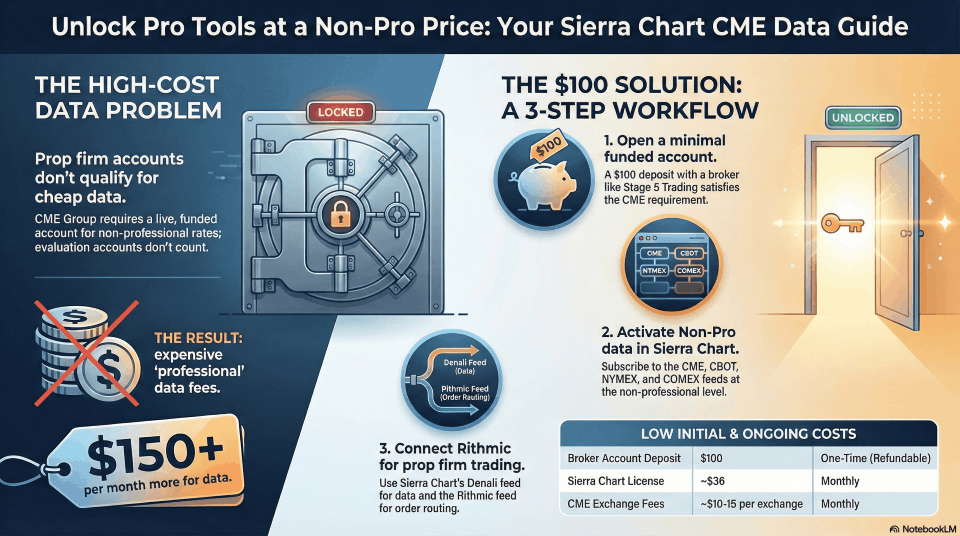
The Problem:
- CME Group (CME, CBOT, NYMEX, COMEX) requires a funded live trading account to access non-professional data rates
- Prop firm evaluation accounts (Apex, TopstepTrader, etc.) do NOT count as funded accounts
- Without a qualified account, you cannot receive real-time data even if you’re paying for it
The Solution:
- Open a small funded account ($100 minimum) with Stage 5, Edge Clear, or Cannon Trading
- This unlocks non-professional CME data rates in Sierra Chart
- Use Rithmic data feed to trade with your prop firm evaluations
Step-by-Step Setup Instructions
Step 1: Open Your Funded Account
Choose ONE of these brokers:
Option A: Stage 5 Trading (Recommended – Easiest)
- Website: stage5trading.com
- Minimum balance: $100 USD
- Sets you up on Teton Order Routing automatically
- Advantage: Automatic authorization (no monthly login required)
Option B: Edge Clear
- Website: edgeclear.com/sierrafunded
- Minimum balance: Contact them for current requirement
- Good alternative to Stage 5
Option C: Cannon Trading
- Website: cannontrading.com
- Minimum balance: $200 USD (or contact them)
- Another solid option
Application Process:
- Visit your chosen broker’s website
- Complete the online account application
- Provide required identification documents
- Fund your account with the minimum balance
- Request setup on Sierra Chart Teton Order Routing (Stage 5 does this automatically)
Step 2: Configure Sierra Chart
Once your funded account is approved:
A. Add the Trading Service Connection:
- Open Sierra Chart
- Go to Global Settings → Data/Trade Service Settings
- Add a new service connection for your broker (Teton Order Routing)
- Enter your account credentials provided by the broker
- Click Connect
B. Activate CME Exchange Fees:
- Log into your Sierra Chart account at sierrachart.com
- Navigate to Account Control Panel → Services Activation
- Select Denali Exchange Data Feed
- Activate the CME Group exchanges you need:
- CME (Chicago Mercantile Exchange)
- CBOT (Chicago Board of Trade)
- NYMEX (New York Mercantile Exchange)
- COMEX (Commodity Exchange)
- Select Non-Professional subscription level
- Complete payment for exchange fees
Step 3: Verify Data Authorization
For Stage 5 / Teton Order Routing:
- Authorization is automatic – no monthly connection required
- Sierra Chart automatically verifies your funded account
- Data should activate within 24 hours
For Edge Clear / Cannon Trading:
- You must connect to your trading account once per month to maintain authorization
- Set a calendar reminder
- Simply open Sierra Chart and connect to the service (you don’t need to trade)
Step 4: Set Up Rithmic for Prop Trading
Now you can use the Rithmic data feed with your prop firm evaluations:
For The Futures Desk or Lucid Trading:
- Obtain Rithmic Credentials:
- Your prop firm will provide Rithmic login credentials
- These are separate from your Stage 5/broker credentials
- Usually received after passing evaluation or purchasing instant funding
- Add Rithmic Connection in Sierra Chart:
- Go to Global Settings → Data/Trade Service Settings
- Click Add New Service
- Select Rithmic from the list
- Enter your prop firm’s Rithmic credentials
- Check Use for Trading (not for data)
- Configure Data vs Trading Services:
- For Market Data: Use Denali Exchange Data Feed (your CME subscription)
- For Order Routing: Use Rithmic (connected to your prop firm account)
- In chart settings, select Denali for data, Rithmic for trading
- Test Your Setup:
- Open a chart (e.g., ES, NQ, CL)
- Verify real-time data is flowing
- Place a test order in sim/demo mode first
- Confirm orders route through your prop firm account
Cost Breakdown
Initial Setup Costs:
| Item | Cost | Frequency |
|---|---|---|
| Stage 5 Account Balance | $100 USD | One-time deposit (you keep this) |
| Sierra Chart License | $36 USD | Monthly |
| CME Exchange Fees (Non-Pro) | ~$10-15 USD | Monthly per exchange |
| Total First Month | ~$146-151 USD | – |
| Monthly After Setup | ~$46-51 USD | Ongoing |
Important Notes:
- The $100 in your Stage 5 account is your money – you can withdraw it later
- You are NOT required to trade with Stage 5 if you don’t want to
- This setup allows you to trade with ANY Rithmic-based prop firm
- Non-professional rates are much cheaper than professional rates (~$150+/month difference)
Key Advantages of This Setup
✅ Minimal Capital Required: Only $100 to unlock non-pro rates
✅ Automatic Authorization: With Stage 5/Teton, no monthly login needed
✅ Best Order Routing: Teton provides industry-leading reliability
✅ Flexibility: Trade with any prop firm using Rithmic
✅ Professional Platform: Sierra Chart’s superior charting and analysis tools
✅ Cost Effective: Non-pro rates save $100-150/month vs professional fees
Common Questions
Q: Do I have to trade with Stage 5?
A: No. The account just needs to exist and remain funded. You can trade exclusively through your prop firm.
Q: Can I withdraw my $100 later?
A: Yes, but you’ll lose CME data authorization if your account balance drops below the minimum.
Q: What if I already have a funded account elsewhere?
A: Unless it’s with a Sierra Chart-supported broker that can verify programmatically, you’ll still need this setup.
Q: Will this work with Apex/TopstepTrader/Earn2Trade?
A: Yes! Once you have CME data authorization, you can use it while trading any prop firm evaluation (if they provide Rithmic access).
Q: How long does setup take?
A: Account opening: 1-3 business days. Data activation: Usually within 24 hours of account approval.
Q: What’s the difference between Denali and Rithmic?
A: Denali = Sierra Chart’s data feed (for charts/analysis). Rithmic = Your prop firm’s order routing (for placing trades).
Technical Support
Stage 5 Trading:
- Support: Available via their website
- Setup questions: They specialize in Sierra Chart users
Sierra Chart Support:
- Support Board: sierrachart.com/SupportBoard.php
- Email: Via their contact page
- Documentation: Extensive help files at sierrachart.com
Your Prop Firm (The Futures Desk / Lucid Trading):
- Contact for Rithmic credential issues
- Account-specific trading questions
Summary: Your Complete Workflow
- ✅ Open Stage 5 account with $100 → Enables CME data authorization
- ✅ Activate CME exchange fees in Sierra Chart → Access real-time data
- ✅ Pass your prop firm evaluation → Receive Rithmic credentials
- ✅ Connect Rithmic in Sierra Chart → Route orders to prop firm
- ✅ Trade with professional tools at non-pro rates → Save money, trade better
Ready to Get Started?
Next Steps:
- Open your Stage 5 account: stage5trading.com
- While waiting for approval, download Sierra Chart: sierrachart.com/index.php?page=doc/SoftwareDownload.php
- Familiarize yourself with the platform using the free trial period
- Once your account is funded, activate your CME exchange fees
- Start trading with professional-grade tools!
Last updated: January 2026
For the most current information, always refer to Sierra Chart’s official documentation and your broker’s requirements.